
Giving an AI agent your personal data, safely
The risks of running an agent like OpenClaw on your own machine, and five patterns that shrink them, from scoped permissions to an egress allowlist.
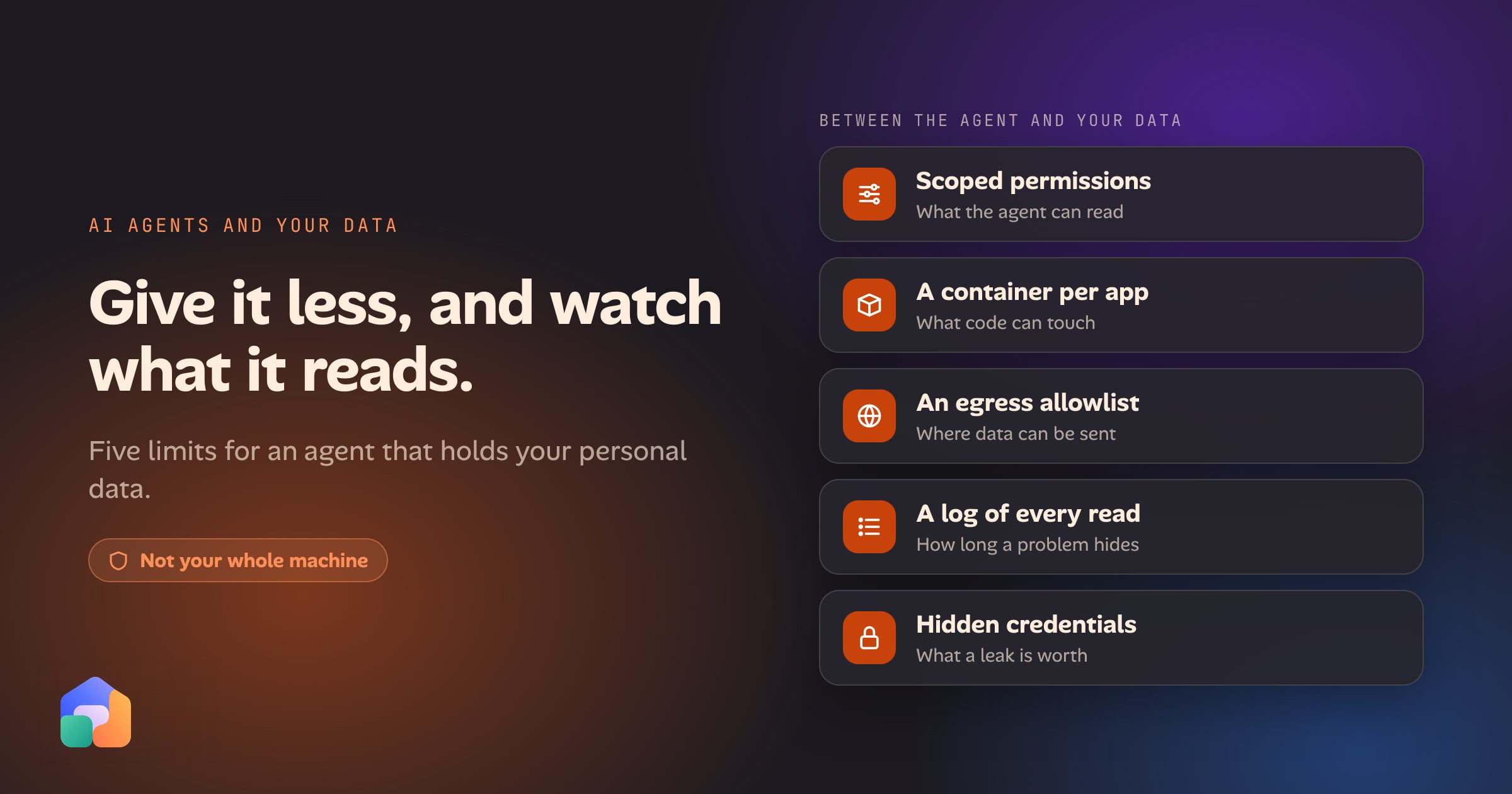
An AI agent is only useful with your data: your mail, your notes, your files, your calendar. The easy way to give it that data is to install it on your own machine under your own login, where it can read everything you can. That is also the riskiest way.
The safe way is to give the agent the smallest piece of your data that does the job, inside a box it cannot leave, with a short list of places it may send anything and a record of what it read. This post covers the three risks worth planning for, five patterns that reduce them, how to apply each one today on a Mac or with Docker, and how Oikou builds them in.
What can go wrong
Security teams keep naming the same three problems for agents that run on your own machine.
Prompt injection. An agent reads web pages, emails and documents, and it cannot reliably tell the text it was asked to read from an instruction it should follow. OWASP lists this first in its Top 10 for LLM applications, and says plainly that “it is unclear if there are fool-proof methods of prevention for prompt injection.” Microsoft’s Defender research team describes the agent version: “Attackers can hide malicious instructions inside content an agent reads and can either steer tool use or modify its memory.”
Malicious skills. Skills and plugins are code and instructions that someone else wrote, and they run with the agent’s access. Microsoft puts it this way: “Installing a skill is basically installing privileged code.” In February 2026 Snyk scanned 3,984 skills from ClawHub and skills.sh and found at least one security flaw in 36.82% of them (1,467 skills), and a critical-level issue in 13.4% (534 skills).
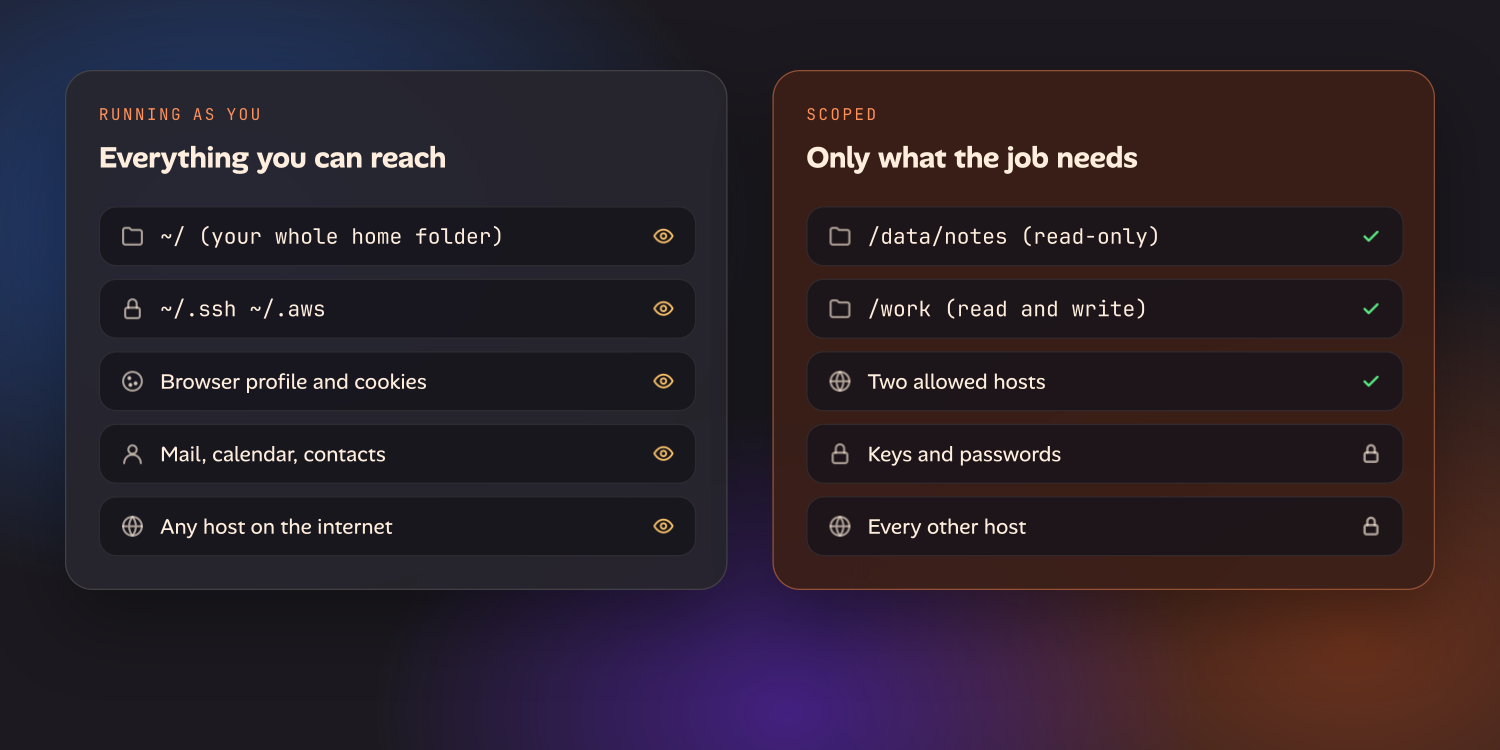
Broad file and credential access. An agent that runs as you can read your SSH keys, your browser profile, your cloud credentials and every document in your home folder. Microsoft’s guidance on running OpenClaw is that it “should be treated as untrusted code execution with persistent credentials.”
The three combine badly. Simon Willison calls the combination the lethal trifecta: access to your private data, exposure to untrusted content, and the ability to communicate externally. An agent with all three can be told by a web page to find something private and send it somewhere. Remove any one of the three and that attack stops working.
What OpenClaw does about it
OpenClaw is the agent most people asking this question are running, so it is worth being exact about what it offers.
Its documentation does not oversell. The sandboxing page says that “sandboxing is off by default”, and of the sandbox that “this is not a perfect security boundary, but it materially limits filesystem and process access when the model does something dumb.” It describes one trust boundary per gateway and says OpenClaw “is not a hostile multi-tenant security boundary for mutually adversarial users.” There is a built-in openclaw security audit command that checks a configuration for common mistakes.
OpenClaw 2.0 (version 2026.8.1, released on 31 August 2026) deserves credit for its work on credentials. The release notes describe private credential requests, which “let your agent request a credential through a masked prompt without putting its value in chat or model context”, and “an opt-in proxy to limit protected-secret substitution to approved destinations.” In plain terms, the model can use a secret without ever seeing it, and the secret can be tied to the hosts it belongs to. That is the right design.
Two things to know before you rely on it. The proxy is opt-in, and sandboxing is still off unless you turn it on. So the defaults matter less than what you set up yourself, which is the rest of this post.
Five patterns that reduce the risk
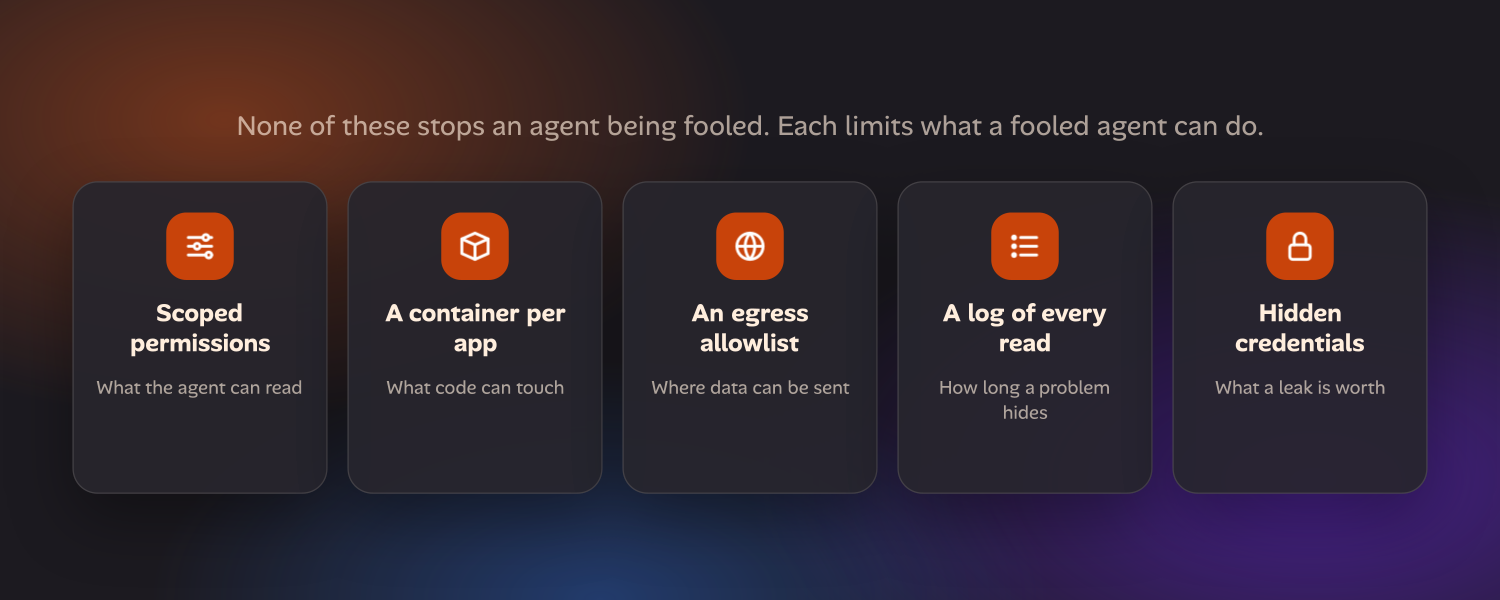
None of these stops an agent from being fooled. Each one limits what a fooled agent can do.
| Pattern | What it limits | The risk it answers |
|---|---|---|
| Scoped permissions per data source | What the agent can read at all | Broad file access |
| A container per app | What a bad skill or app can touch | Malicious skills |
| An egress allowlist | Where data can be sent | Prompt injection that steals data |
| A log of every read | How long a problem goes unnoticed | All three |
| Credentials the agent’s host never sees | What a stolen secret is worth | Broad credential access |
How to apply them yourself today
You can get most of the way with tools that are already on your computer.
Scoped permissions: a separate macOS user
Create a standard user just for the agent, and run the agent while logged in as that user.
sudo sysadminctl -addUser agent -fullName "Agent" -password -
macOS keeps each user’s Documents, Desktop and Downloads folders private to that user, and gives each user their own Keychain and their own privacy permissions for Mail, Calendar, Contacts and Photos. The agent user starts with none of yours. Share data with it on purpose, by copying or syncing only the folders it needs into its home folder.
This is the cheapest step and it removes the most. The catch is that it does nothing about the network, and files outside home folders (such as /Users/Shared and external drives) are still readable.
A container, with read-only mounts
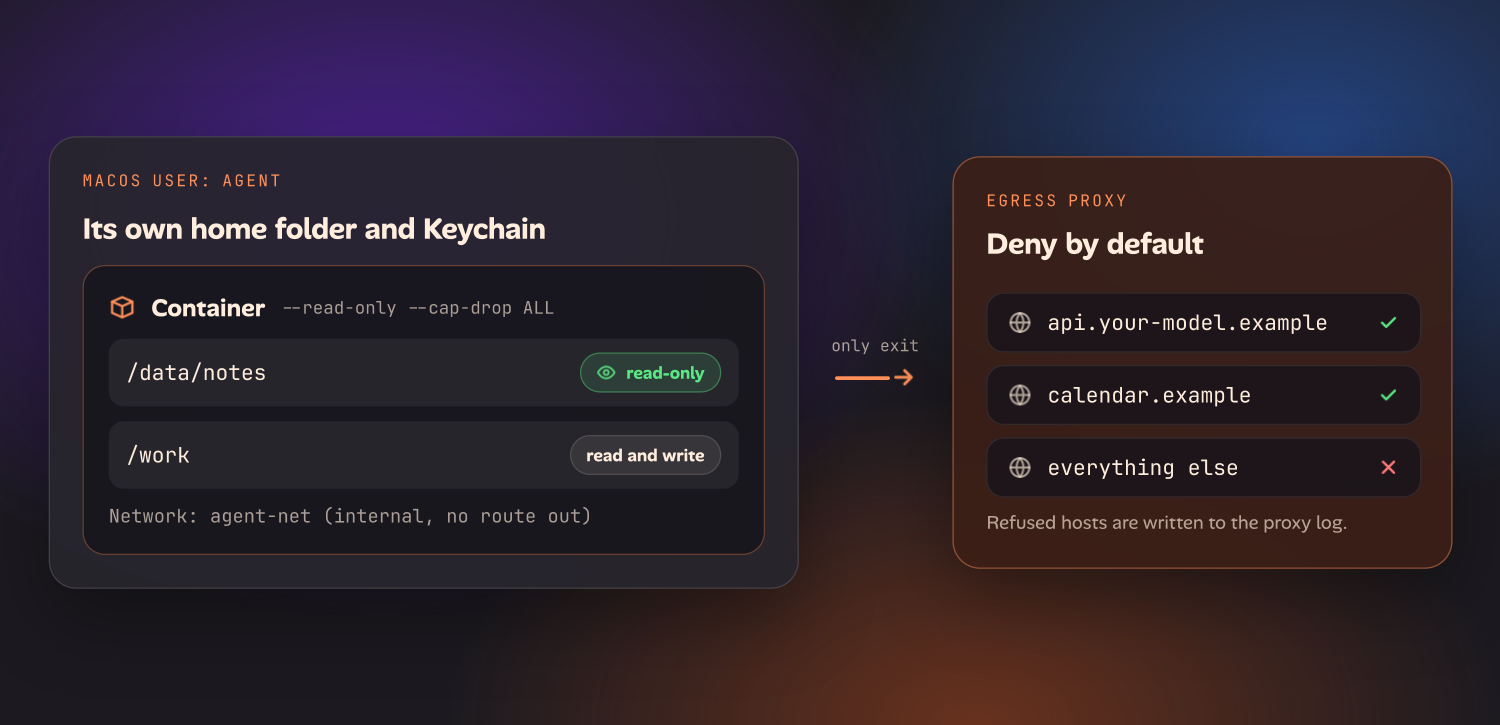
A container narrows things further. The agent sees only the folders you mount, and the ones you mark :ro cannot be changed.
docker run --rm -it \
  --user 1000:1000 \
  --read-only --tmpfs /tmp \
  --cap-drop ALL --security-opt no-new-privileges \
  --pids-limit 256 --memory 2g \
  --network agent-net \
  -e HTTPS_PROXY=http://egress-proxy:8888 \
  -v "$HOME/agent-data/notes:/data/notes:ro" \
  -v "$HOME/agent-work:/work" \
  my-agent-image
Mount one folder per data source instead of your home folder. Do not mount ~/.ssh, ~/.aws, a browser profile or the Docker socket. If you run OpenClaw, turning on its own sandbox mode gets you a version of this for tool execution.
An egress allowlist: a restricted Docker network
The agent-net network in the command above is what stops data leaving. Create it as an internal network, which has no route to the internet, and put a small allowlisting proxy on it as the only way out.
docker network create --internal agent-net
docker run -d --name egress-proxy --network agent-net \
  -v "$PWD/tinyproxy.conf:/etc/tinyproxy/tinyproxy.conf:ro" \
  -v "$PWD/allowlist:/etc/tinyproxy/allowlist:ro" \
  my-tinyproxy-image
docker network connect bridge egress-proxy
In the proxy’s configuration, deny by default and allow only the hosts in your list:
Port 8888
Filter "/etc/tinyproxy/allowlist"
FilterDefaultDeny Yes
The allowlist holds one host pattern per line: your model provider’s API host, and whatever else the agent has a real reason to reach. A program in the agent container that ignores the proxy setting has no route out at all. (The two image names are placeholders: use your agent’s image and any tinyproxy image.) The proxy’s log also shows every host that was refused, which is useful: it tells you what the agent tried to reach.
A log of every read
This is the hardest one to do by hand. Three options, from most to least useful:
- Put the data behind a small service instead of a mount. If the agent asks an API or an MCP server for “this week’s calendar” instead of reading a file, the service can log each request in terms you can read later.
- On Linux, audit the folder.
auditctl -w /srv/agent-data -p r -k agent-readrecords each read, andausearch -k agent-readlists them. - On macOS, watch file opens.
sudo eslogger openprints every file open on the machine. It works, but it is noisy and you have to filter it yourself.
Credentials the agent’s host never sees
Keep long-lived secrets out of the agent’s reach, then make the ones it does use worth as little as possible.
- Use a token made for the agent, limited to reading where the service allows it. Never your own password.
- Where you can, let a proxy add the credential to the request, so the agent only ever holds a placeholder. This is what OpenClaw 2.0’s credential proxy does.
- Prefer a sign-in that happens on the provider’s own page over pasting a key into a config file.
How Oikou builds these in
Oikou takes a different shape from a chat agent on your machine. Your data lives in apps (a food log, a task list, a budget) that run on a computer you own, and your AI works through those apps instead of through your home folder. If you already run a home server, the page for home servers covers how that fits.
Here is what Oikou’s security page says today, matched to the patterns above:
- A container per app. Every app runs in its own container with only the access you grant it. An app can’t reach your other apps’ data unless you allow the connection.
- Scoped permissions per data source. Apps ask for exactly what they want to read from other apps. You approve each one at install and can revoke any of them at any time. How connections work shows what that looks like.
- A log of every read between apps. Every cross-app read is logged, and you can read the log.
- Credentials Oikou never holds. You sign in to your AI on Anthropic’s or OpenAI’s own page. Oikou runs their own unmodified agents and never sees, stores or reuses what you enter there.
One pattern is missing from that list. A per-app egress allowlist is not on Oikou’s security page today, so I am not claiming it here. If outbound control matters to you now, the Docker network above is the way to get it.
The same limits apply to Oikou as to everything else in this post. Your data goes to your AI provider when you ask, or when an app you’ve allowed uses your AI in the background, so the provider’s handling of it still matters. Permissions and containers don’t make an agent immune to a malicious instruction. And Oikou is young software, provided without warranty, where you are the administrator. How Oikou compares with a chat agent sets the two approaches side by side.
Which to pick
If you want an agent on your machine this week, do three things first: a separate user, a container with read-only mounts, and a short egress allowlist. An afternoon of setup removes most of what the security write-ups warn about.
If you would rather the limits were part of the system than something you maintain, look for a setup where data lives in separate apps with permissions you grant one at a time and a log you can read. That is what Oikou is built to be.
Either way, ask the same question about every source of data you connect: if this agent were tricked right now, what could it read, and where could it send it?
Questions
- How do I let an AI agent access my personal data safely?
- Give it the smallest piece of your data that does the job, not your whole machine. Run it as a separate user or in a container with read-only mounts, let it reach only the hosts you list, keep passwords and tokens out of its reach, and keep a log of what it read. None of this stops prompt injection. It limits what a hijacked agent can see and where it can send it.
- Is OpenClaw safe to run on my own computer?
- It can be run more safely than its defaults. OpenClaw's own documentation says sandboxing is off by default and that one gateway is one trust boundary. Microsoft's Defender research team advises treating it as untrusted code execution with persistent credentials and running it in an isolated environment with dedicated, non-privileged credentials. OpenClaw 2.0 added masked credential requests and an opt-in proxy that binds secrets to approved hosts.
- Does a sandbox stop prompt injection?
- No. A sandbox does not stop an agent from reading a malicious instruction and following it. It limits the damage, because the agent can only read what you mounted and only send data to hosts you allowed. OWASP says it is unclear whether there are fool-proof methods of prevention for prompt injection.
- What is an egress allowlist?
- A list of the only hosts a program is allowed to connect to. Every other outbound connection is refused. For an agent that holds private data, it is the control that stops stolen data leaving, because an attacker's server is not on the list.
- Is there a safer way to give an AI agent access to my personal data?
- Give it structured apps with explicit permissions instead of your whole machine. In Oikou, every app runs in its own container, asks for exactly what it wants to read from other apps, and you approve each connection at install, can revoke it at any time, and can read a log of every cross-app read. Oikou never holds your AI credentials. You sign in on Anthropic's or OpenAI's own page.